# Introduction
In [[My Personal Productivity And Organization Philosophy]], I talked about the thought process behind my actual productivity process. This will be a more practical look at how I implement this philosophy day-to-day.
As a reminder, I have three spheres of organization, each using different tools to execute my process.
1. Notes (things to reference later)
2. Tasks (things to do)
3. Events (things to attend)
This page will be focused on Notes.
# Which Tool?
I have a bad memory, so I have to be able to write things down and reference them later in order to not lose track of information. There are many tools that can be used for this. Some will just use pen and paper. Physically writing things does seem to connect our thoughts in a tangible way. The problem I see with this is eventually a person will run out of physical space to write on. Either the whiteboard gets erased to make more space or the notebook has to go on the shelf because there are no more pages. For these and other reasons, I use a digital tool.
The tool I use for note-taking is [Logseq](https://logseq.com) (pronounced "Log-seek"). This website is written in [Obsidian](https://obsidian.md), which is a similar tool. Neither Logseq and Obsidian are cloud-based. They use markdown files (which are like simple text documents) stored on your local computer. I actually use both tools depending on the circumstance and have them working off the same local files. There are strategies to sync your notes between devices, but for the privacy-minded person, these tools are a good option. In the past I have also used [Notion](https://www.notion.so). All three of these apps are built on the philosophy of [Zettelkasten](https://en.wikipedia.org/wiki/Zettelkasten), which attempts to mimic the way the human brain works for information recall. You can read more on Wikipedia, but essentially, this system gets rid of long-form, cluttered note documents in favor of shorter notes that are linked together. If notes are linked well, you can trace all your thoughts on a specific topic back through the many notes that you have taken regarding that topic. Logseq and Obsidian also present a cool graphic called a "graph view" showing a visualization of all your notes linked together.
This is my graph view as of this writing in Obsidian:
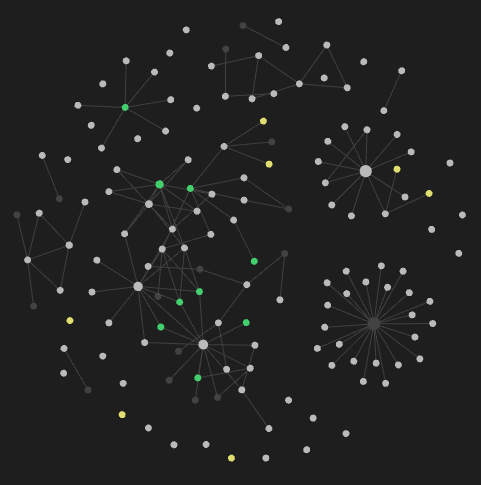
I have only been using these tools for a few months, so my graph is not very expansive. Over a longer period of time, the information grows and can eventually look something like this:

Imagine that much information being stored in physical media!
# How Do I Use It?
In Logseq, my default page when I open the app is a journal page. There are options to make other defaults. I like to use the journal page to write down quick notes and add links so they point to other pages. Here is an example of a journal page (with some personal details removed):
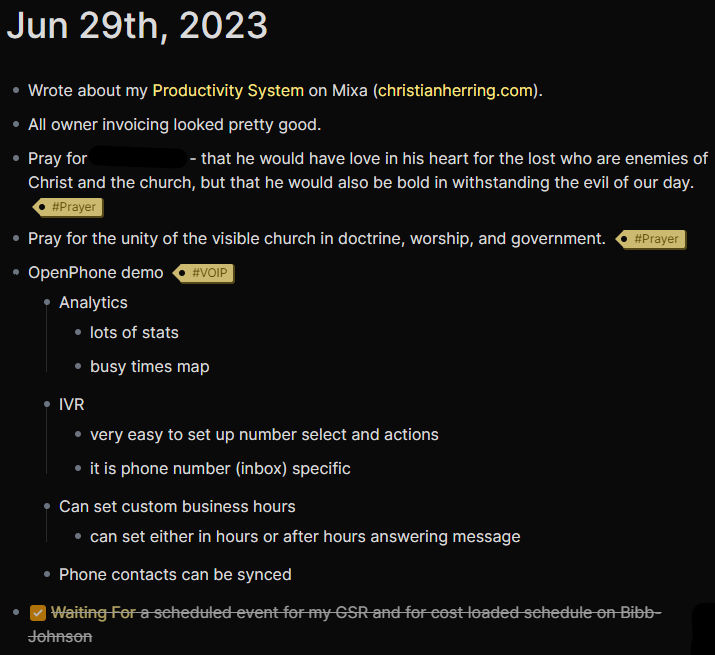
In Logseq, both inline page references and hashtags work the same. I just use them differently depending on the context of the note. They both link to a page with that name. For example, if I click the "Productivity System" link in the above journal page, it takes me here:
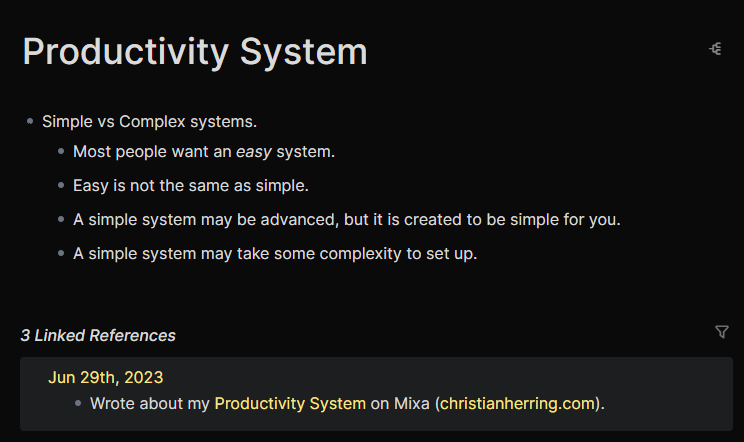
I have a few notes directly on this page, but it also shows me where this page has been linked elsewhere. You can see the journal page reference at the bottom.
Anything can be a page reference. I even have pages for people that I work with (and myself). If I go to a "John" page, I can see every other instance where I put John's name on something like notes from a conversation or follow up note.
# What Else Can It Do?
Another powerful feature of Logseq is the ability to create queries. This is a more advanced feature, but it allows a user to pull information together quicker than chasing notes through links or looking at large pages full of references. One way that I have used this is to pull together all action items that I have noted from meetings with people. I keep track of both my items and others. The query that I have built pulls in anything that has an "Action Item" link then filters it based on the name link. These are marked as "TODO," which Logseq interprets as a checkbox. Once the box is checked, the item is removed from my current action items and is placed in the section for completed action items (which is collapsed in the screenshot).
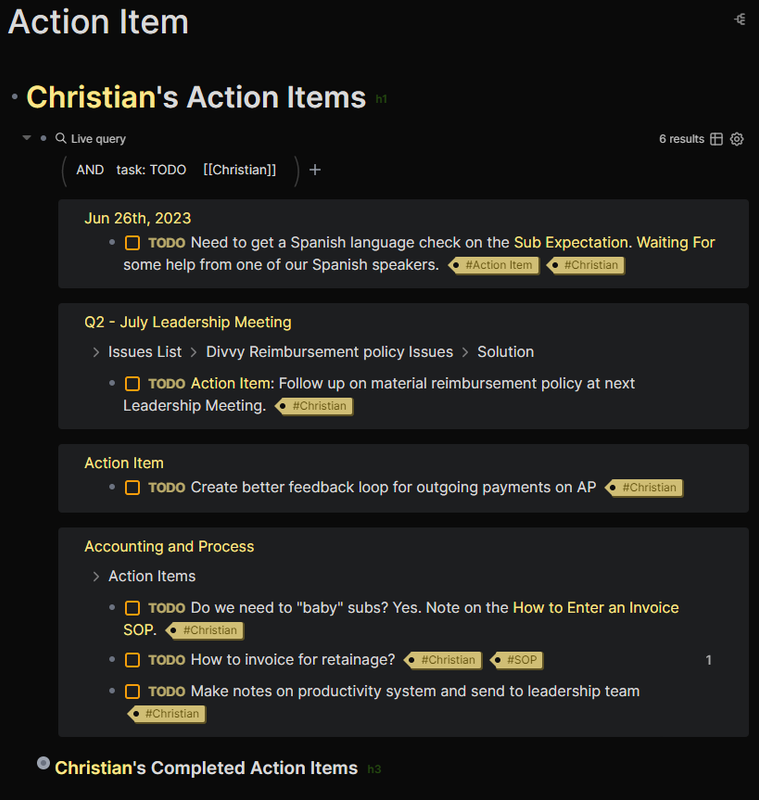
This is where there can be some crossover with Tasks. I do not use Logseq as a task manager because this is not its primary purpose. Even though these action items are things that need to be done, they are primarily follow up items for future meetings. I use my task manager to actually track the specific things that I need to do, then I mark the action item as "complete" in Logseq so I can go back and reference whether or not they were actually completed. Even though it gets marked off, the action item still exists in the appropriate note.
Logseq and Obsidian also offer robust keyboard shortcuts which make navigating the program and the notes very fast. They offer plugins for different added functionality or themes, and even the ability to edit a custom CSS file to create your own theme. They offer a "whiteboard" or "canvas" that creates some interesting visualizations of notes (Logseq's Whiteboard is still a new feature and could use some development). Logseq offers a Flashcard feature that can be an aid for studying and information recall training.
The best part? All three of the tools mentioned are completely **FREE**. They do offer some additional functionality that you can pay for, but the base functionality is very extensive.